How to invite a teammate to YakComms
Colleagues need their own YakComms access to join client rooms. Invite them with a role: members collaborate in rooms, admins also manage the team, billing and settings.
Plays silently with captions; the narrated version is on its way.
Transcript
Give a colleague access to YakComms, with the right role.
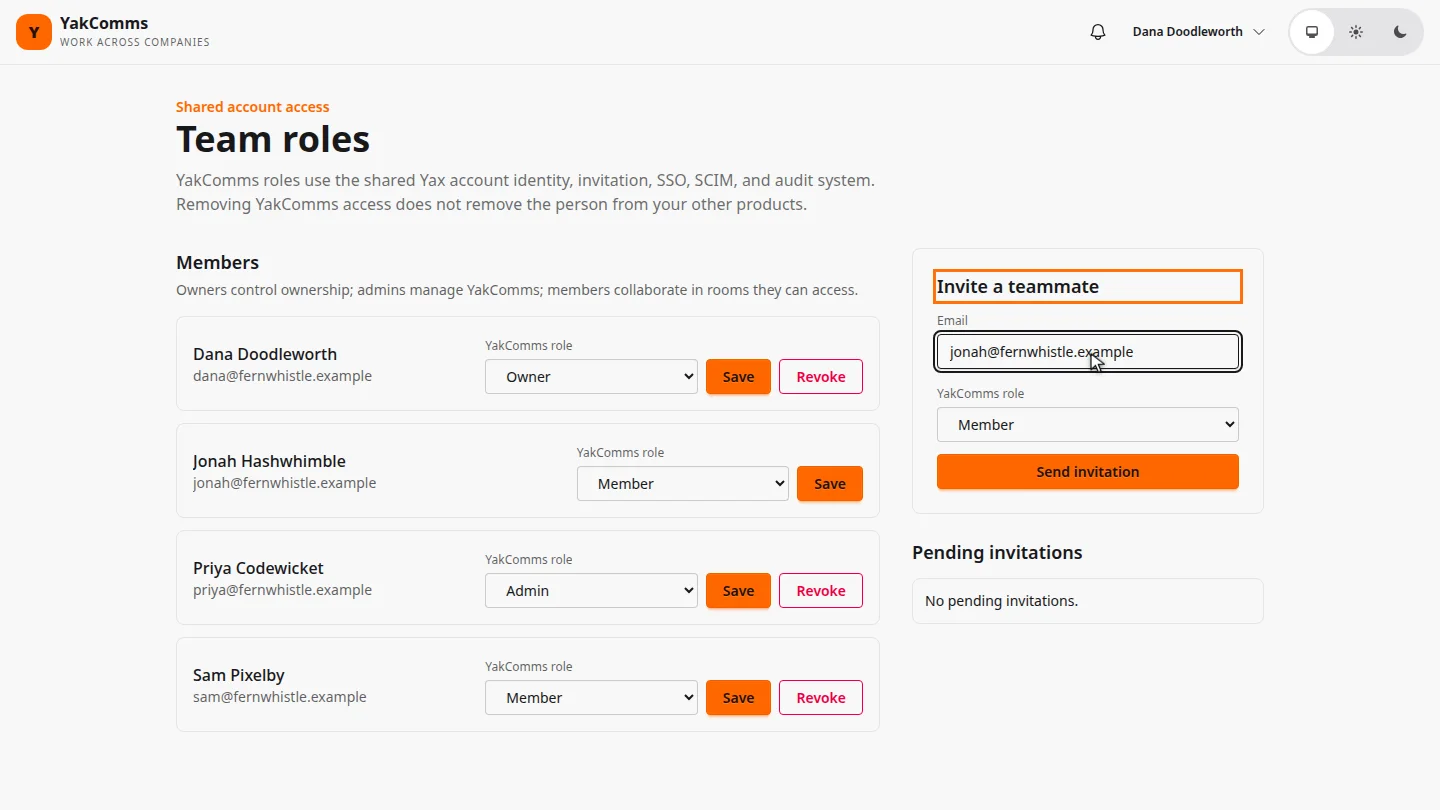
Open Team from your account menu. Under Invite a teammate, enter your colleague's work email.
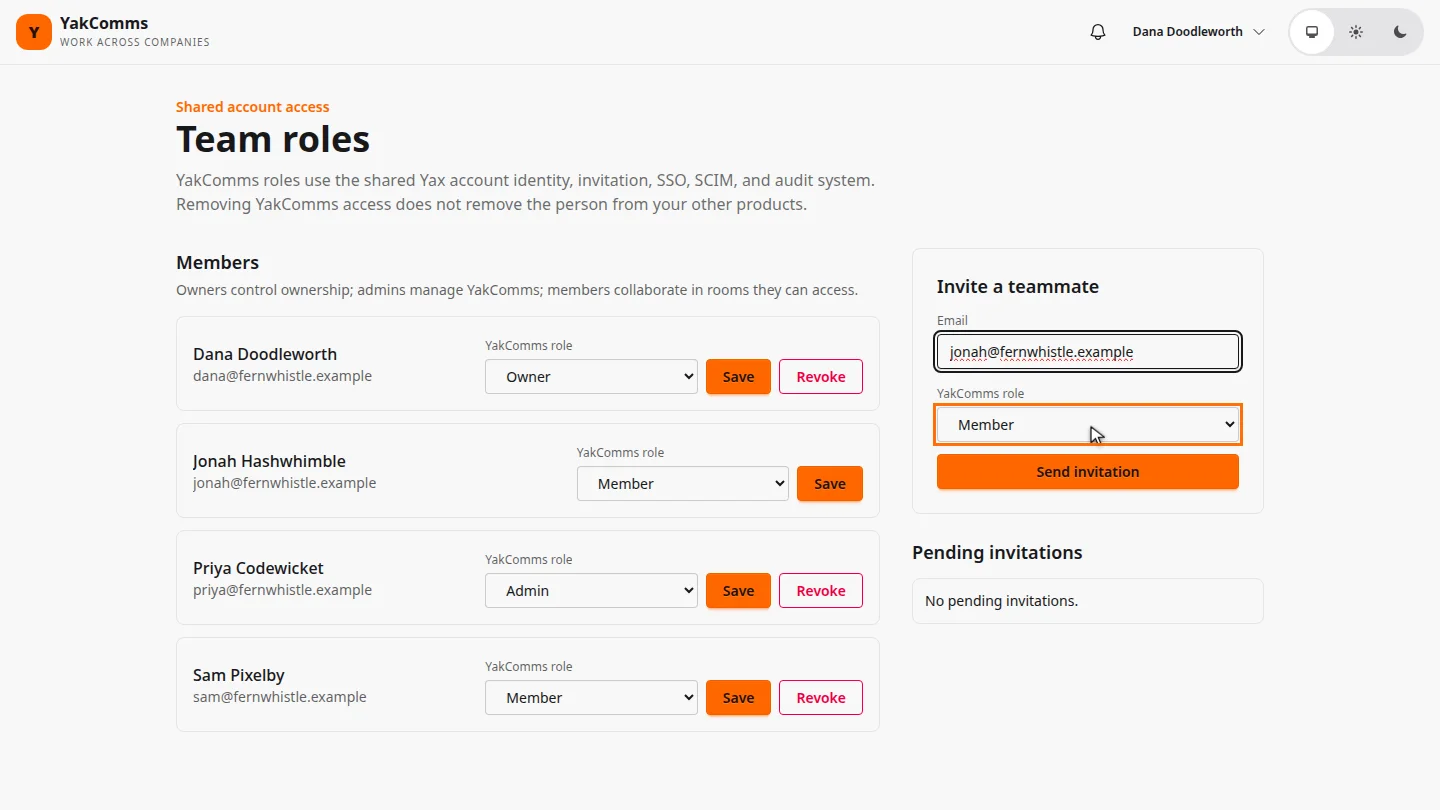
Choose their YakComms role. Members collaborate in rooms; admins also manage the team and settings.
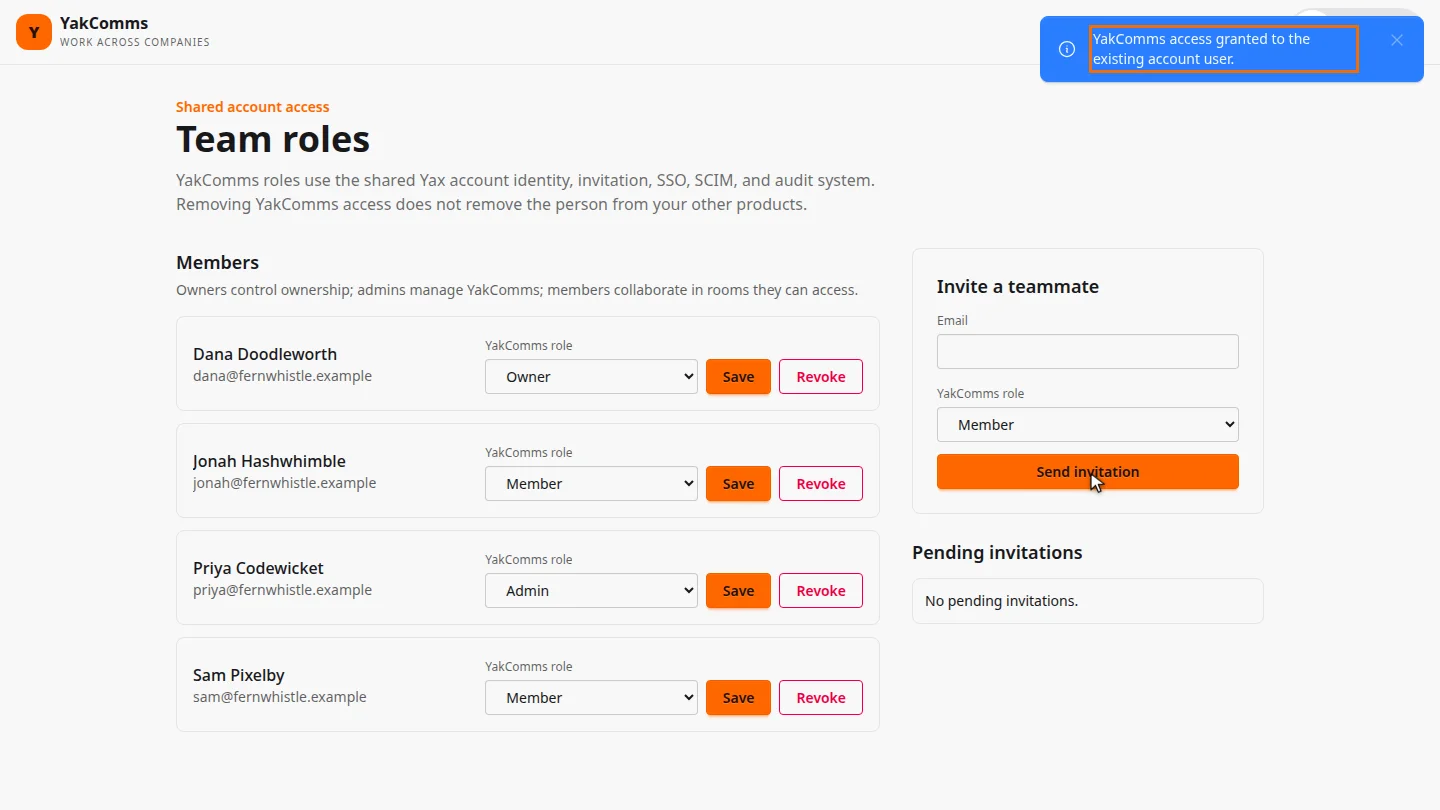
Select Send invitation. Jonah already uses another Yak product in the studio's account, so his access is granted straight away. A new address would get an email invitation instead.
Steps
Enter their email ▶ 0:05
From your name menu, select Team. Under Invite a teammate, enter the Email.
Choose a role ▶ 0:12
Choose a YakComms role: Member, Admin or Owner.
Send the invitation ▶ 0:19
Select Send invitation. Existing account users get access immediately; anyone else receives an email and appears under Pending invitations.
Next steps
Updated 2026-10-26
add user team member invite colleague roles permissions