How to invite an external collaborator in YakComms
A shared room only helps once the client is in it. Invite people from another company by email: as guests they see this room and nothing else in your workspace, and conversations you mark internal stay with your team.
Before you start
- A shared room you administer (see Create a shared room)
Plays silently with captions; the narrated version is on its way.
Transcript
Bring your client into a shared room, so both companies work from the same conversation.
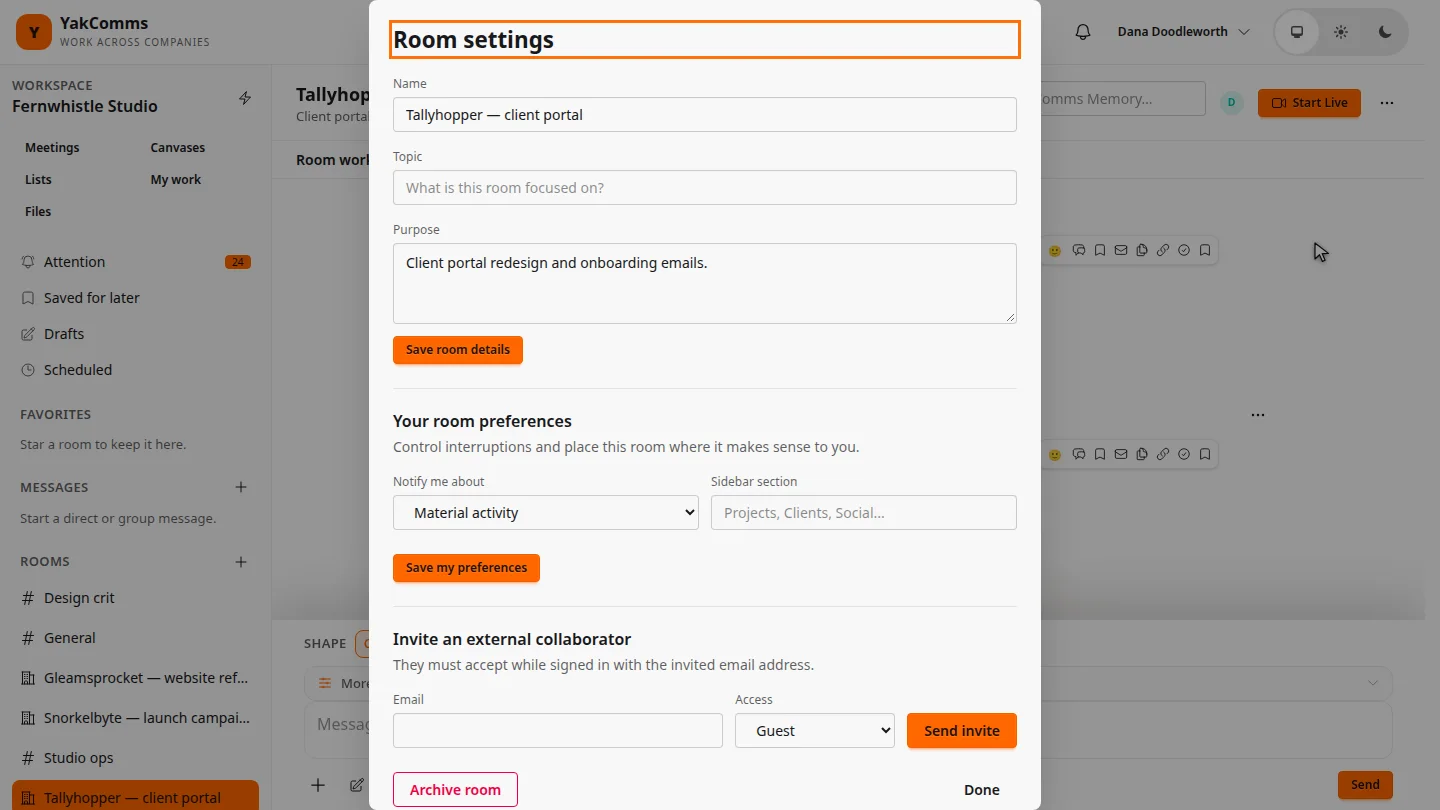
Open the room you want to share. Select the three-dot menu at the top right, then choose Room settings.
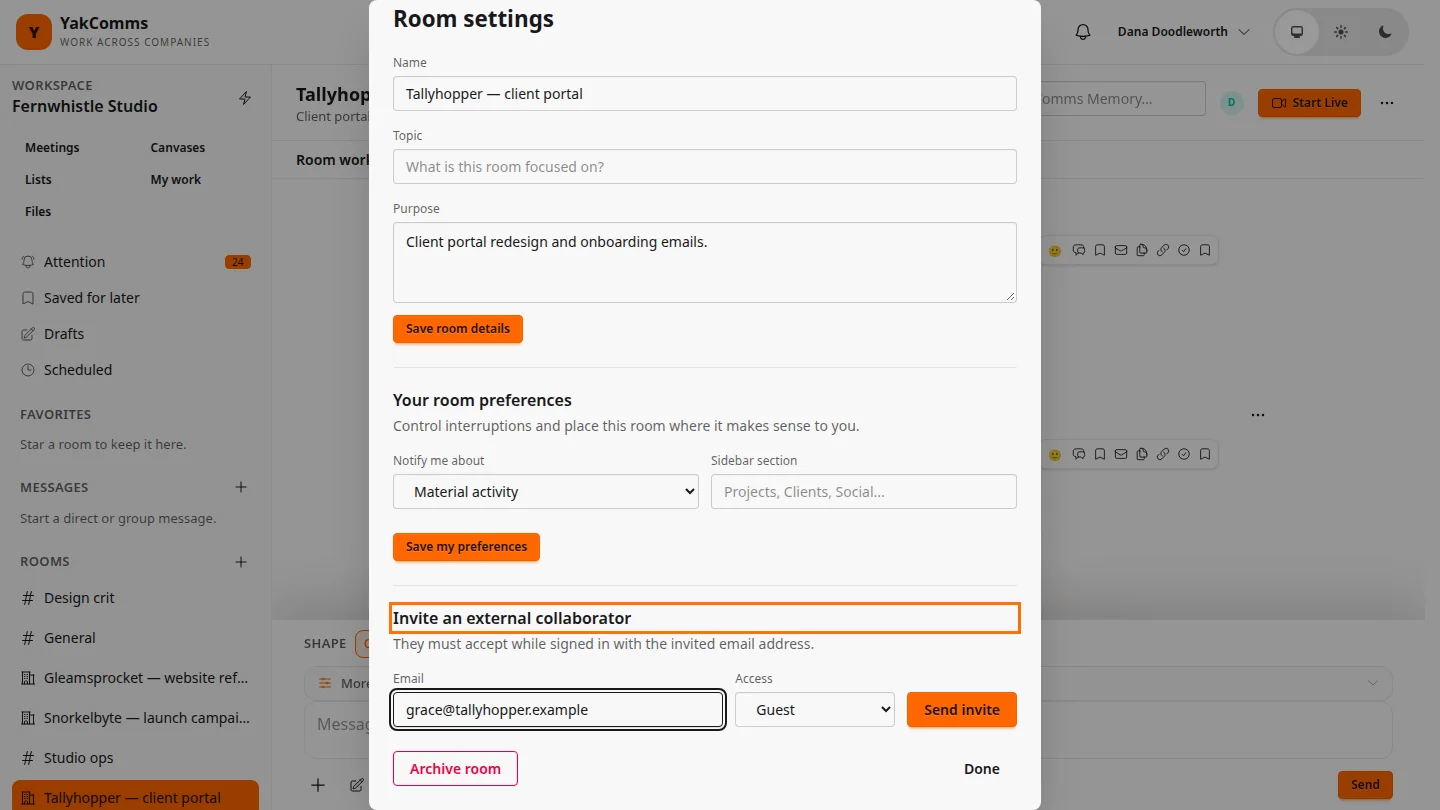
Under Invite an external collaborator, enter your client's email address. Guest access is selected, so they'll see this room and nothing else.
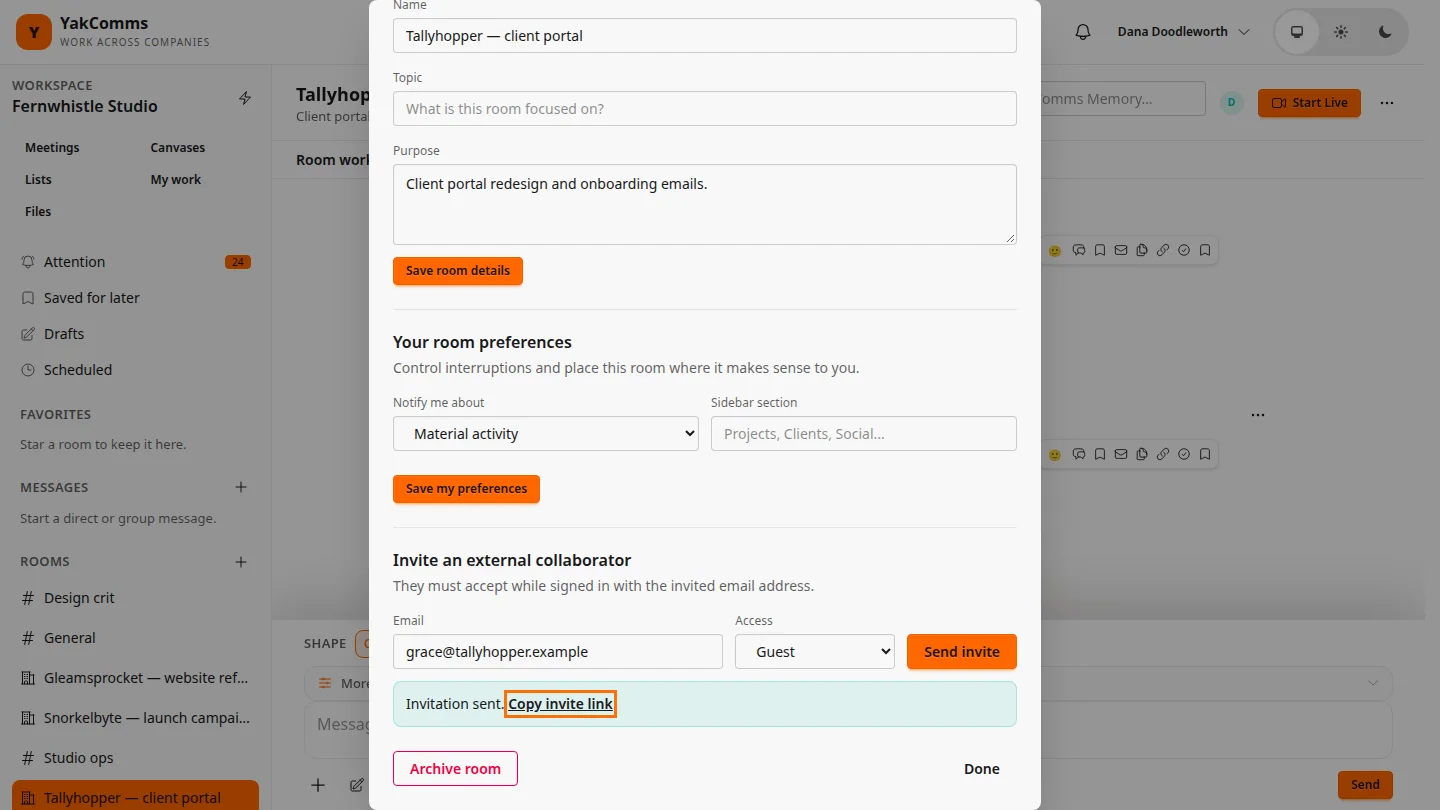
Select Send invite. YakComms emails the invitation and confirms it's sent. You can also copy the invite link and share it yourself.
Steps
Open room settings ▶ 0:07
Open the room, select More room actions (the ⋯ button), then select Room settings.
Enter their email ▶ 0:15
Under Invite an external collaborator, enter the person's Email. Leave Access set to Guest for clients.
Send the invite ▶ 0:25
Select Send invite. Invitation sent. appears with a Copy invite link button.
Next steps
Updated 2026-10-26
invite client guest access external user add client to channel cross-company