How to choose how a room notifies you in YakComms
Not every room deserves the same attention: a client launch needs every message, an archive-in-waiting needs none. Room preferences set what each room can interrupt you about, without affecting anyone else.
Before you start
- Access to the room
Plays silently with captions; the narrated version is on its way.
Transcript
Decide what each room is allowed to interrupt you about.
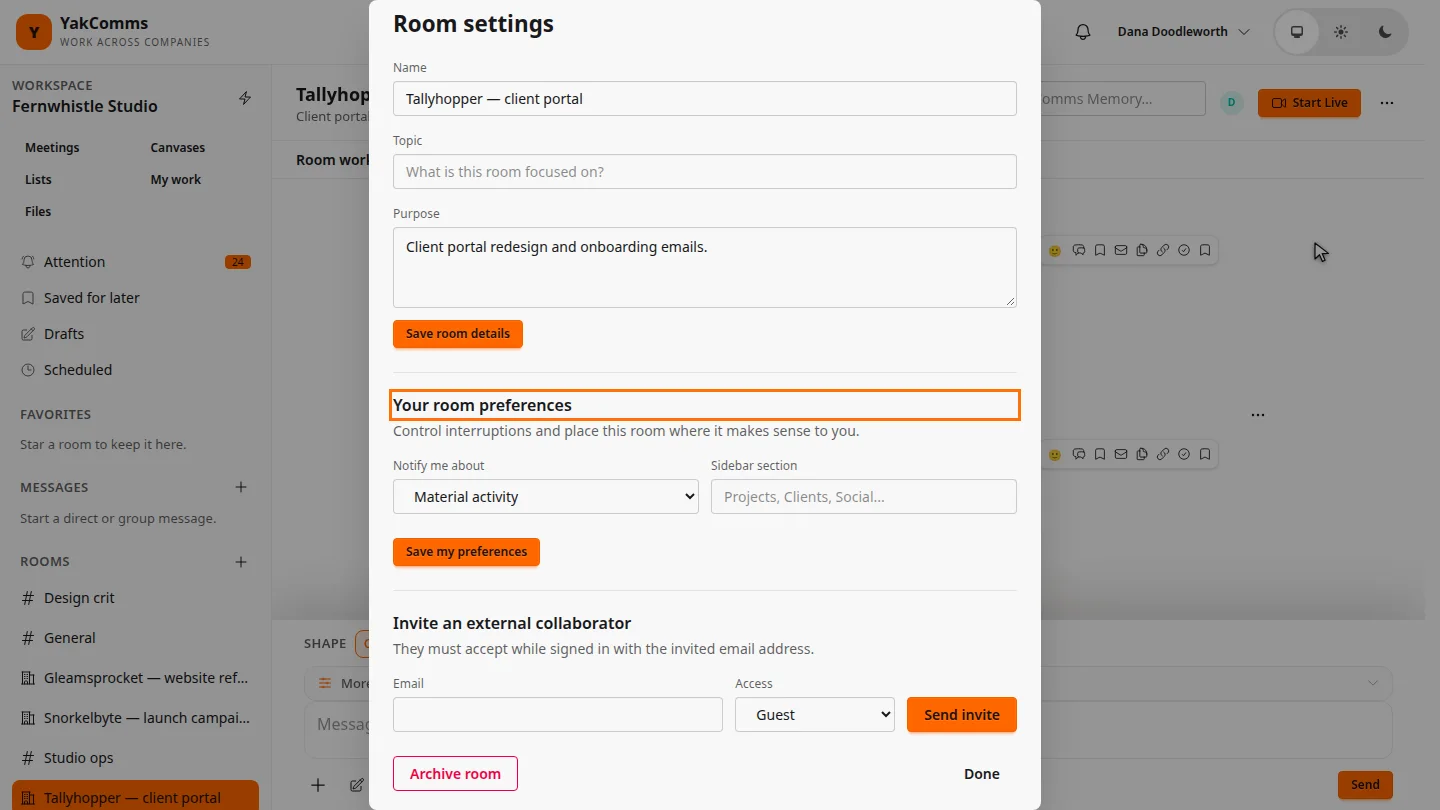
Open the room, select the three-dot menu at the top right, then choose Room settings, and scroll to Your room preferences.
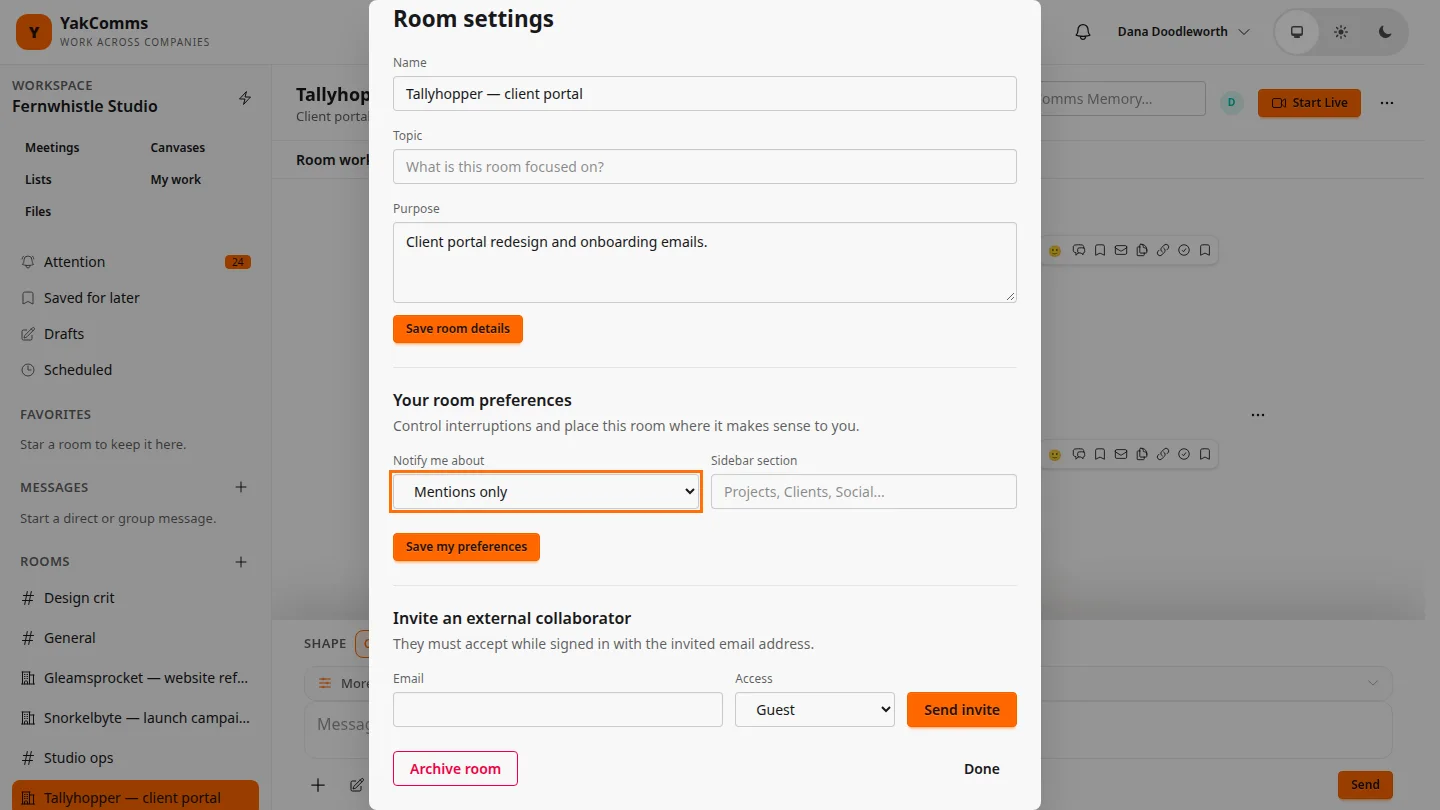
Under Your room preferences, open Notify me about. Material activity is the default. Choose Mentions only to hear from this room only when someone mentions you.
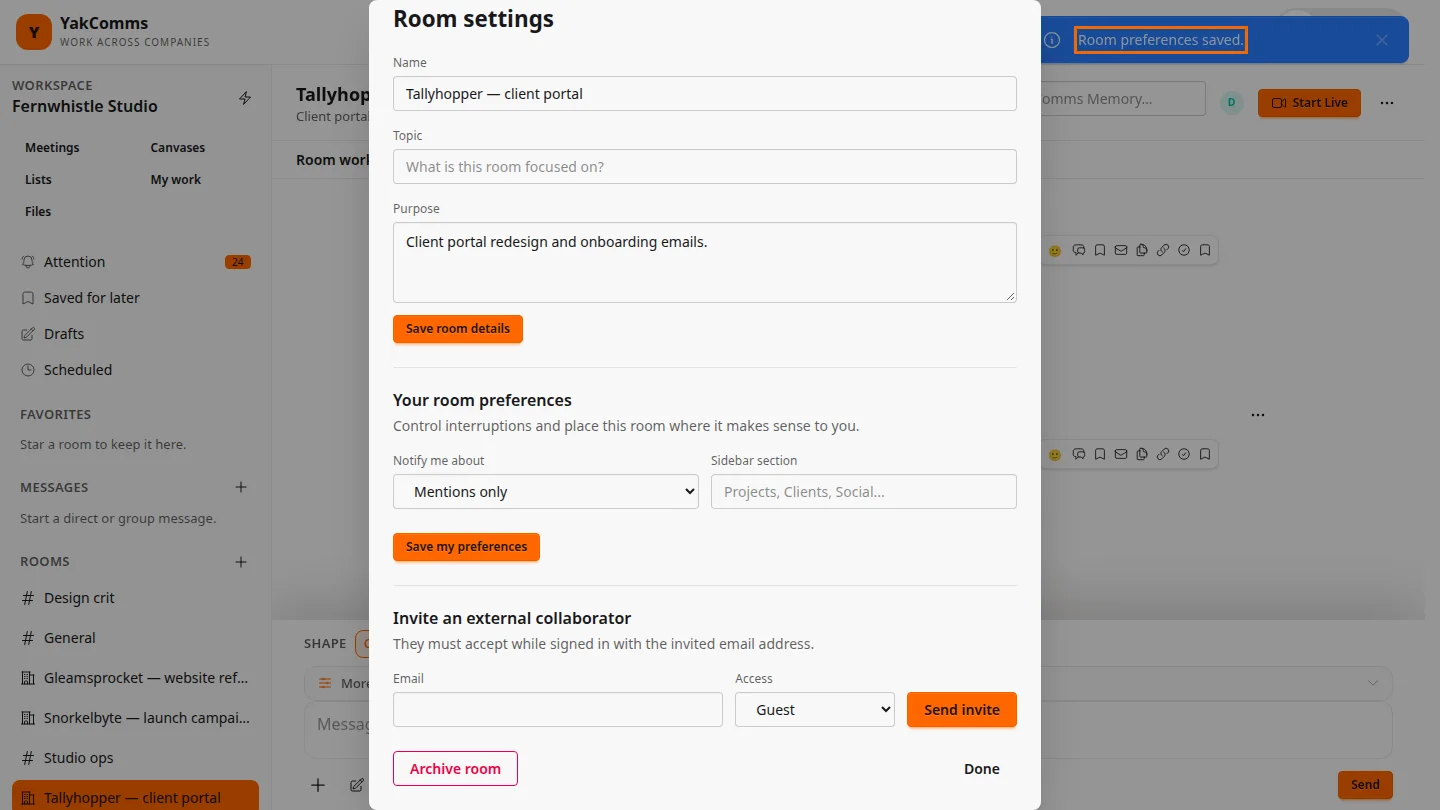
Select Save my preferences. The change applies to you only; everyone else keeps their own settings.
Steps
Open room settings ▶ 0:05
In the room, select More room actions (⋯), then select Room settings.
Choose what reaches you ▶ 0:14
Under Your room preferences, set Notify me about. For example, choose Mentions only.
Save ▶ 0:26
Select Save my preferences. Room preferences saved. appears.
Next steps
Updated 2026-10-26
mute room mentions only room notifications notification level