How to write a shared canvas in YakComms
Some things need a page, not a message: a brief, a shot list, meeting notes. A canvas is a document that belongs to a room, so everyone in the room can read and edit it, and it saves as you type.
Before you start
- Access to the room the canvas belongs to
Plays silently with captions; the narrated version is on its way.
Transcript
Write a brief that the whole room can read and edit.
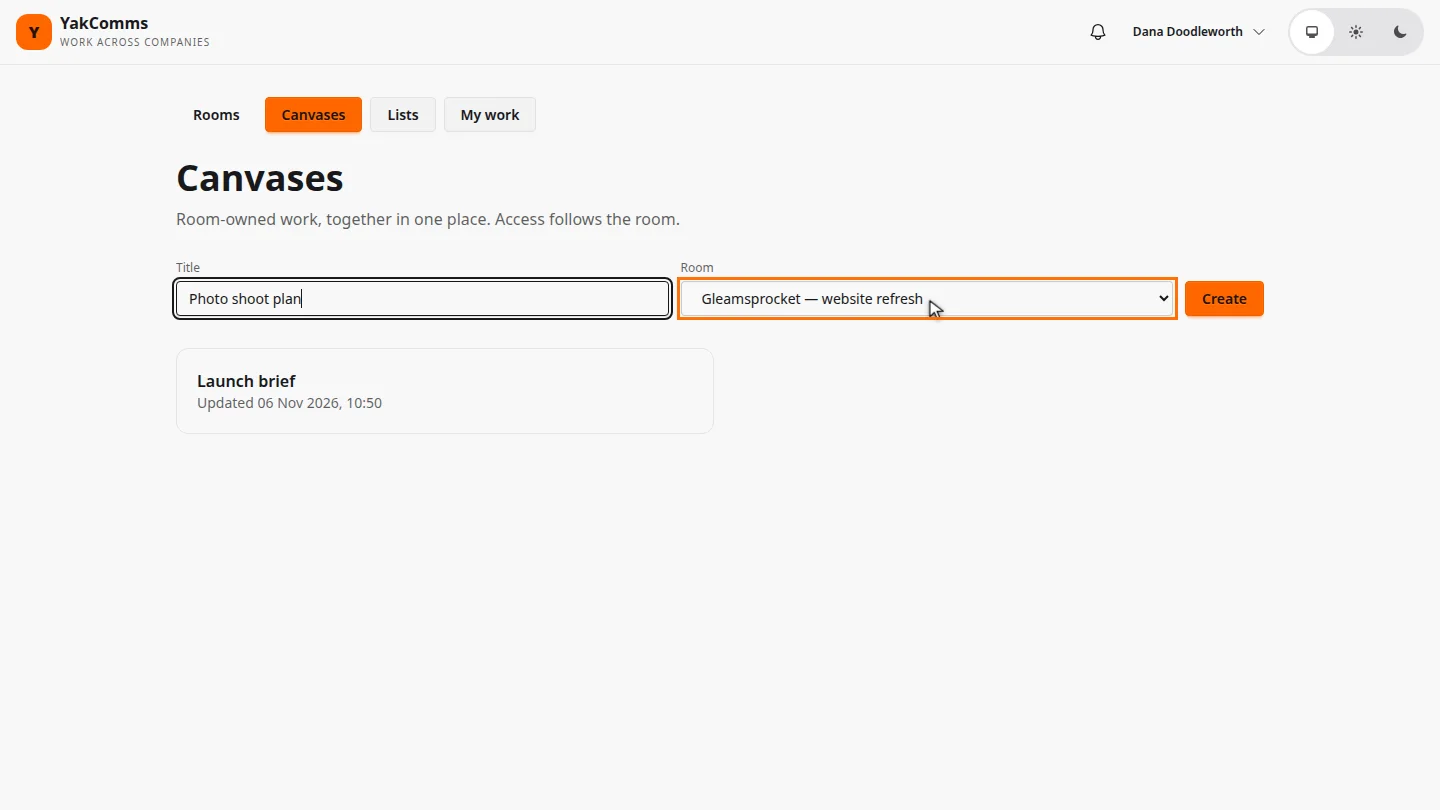
Open Canvases from the sidebar. Give the canvas a title, and choose the room it belongs to. Everyone in that room, including your client, can open it.
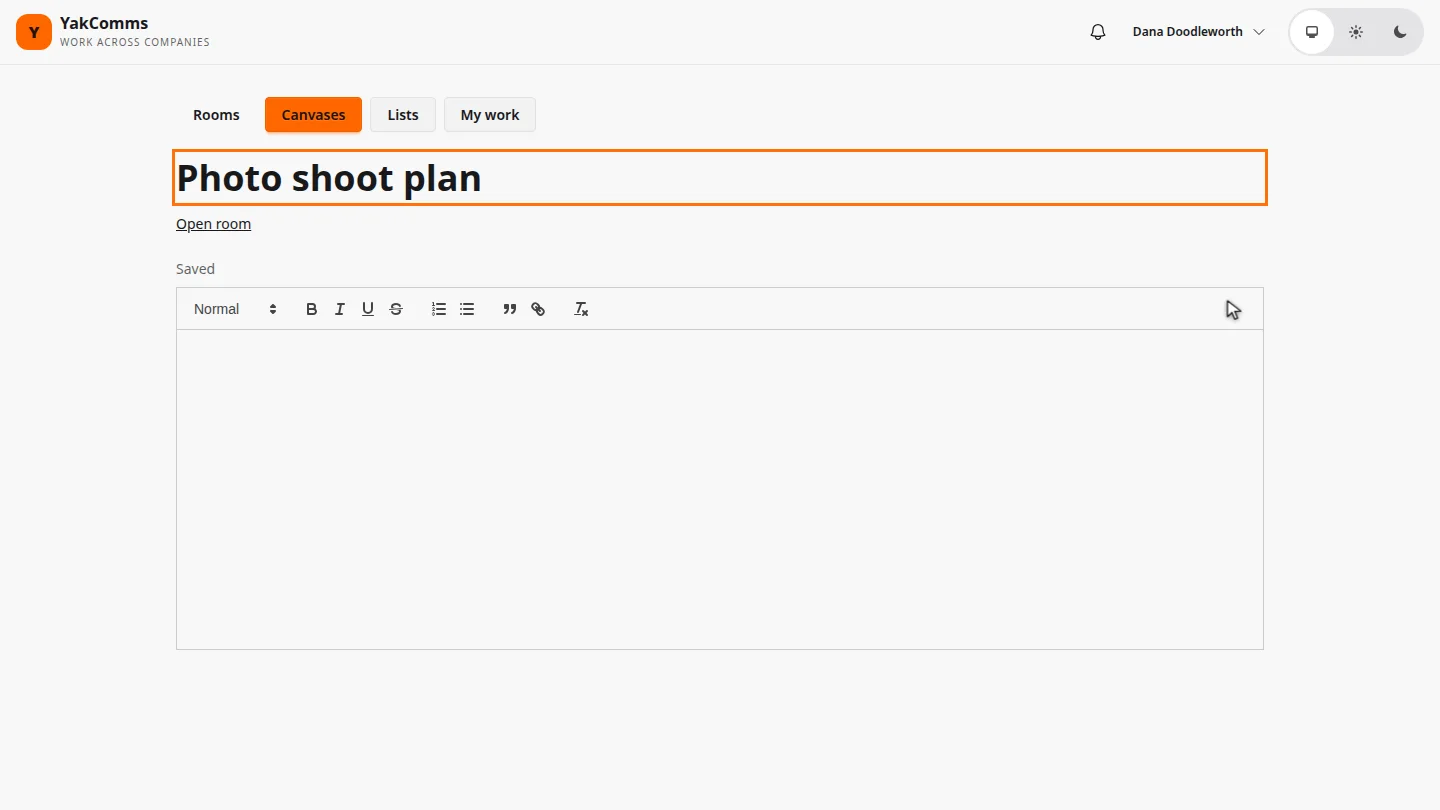
Select Create. The empty canvas opens, and it is also linked from the room's Room work bar.
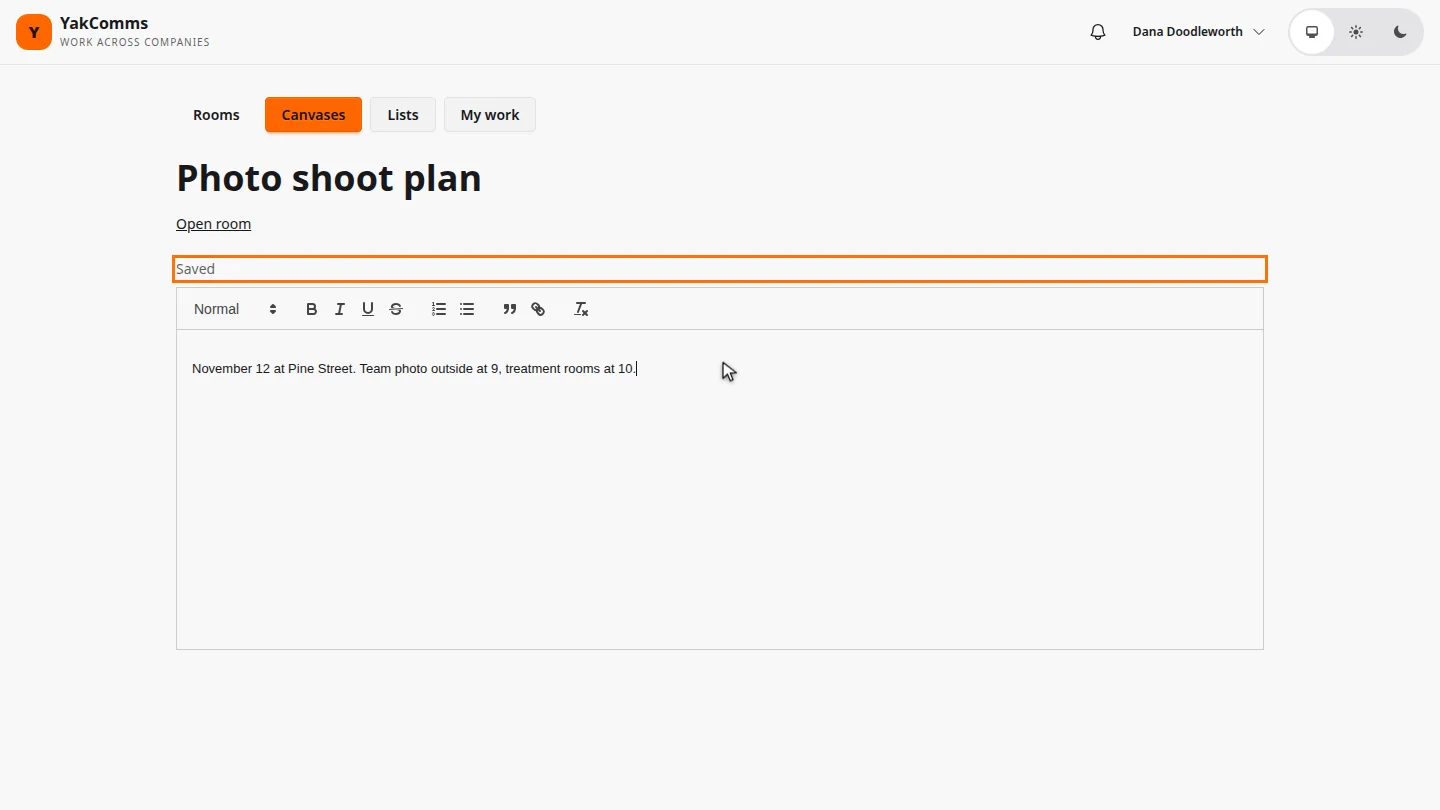
Select the page and start writing. Changes save as you type, and the status above the page shows Saved.
Steps
Name it and pick a room ▶ 0:05
On Canvases, enter a Title and choose the Room.
Create the canvas ▶ 0:16
Select Create. The new canvas opens.
Write ▶ 0:23
Select the page and type. The status shows Saved when your changes are stored.
Next steps
Updated 2026-10-26
shared document notes brief collaborative doc canvas