How to turn a message into a task in YakComms
Requests arrive as chat messages, and chat scrolls away. Adding a message as a task puts it on the room's list with a link back to the message, so the request gets done instead of forgotten.
Before you start
- A message in a room you're a member of
Plays silently with captions; the narrated version is on its way.
Transcript
Turn a client's request into a task, so it doesn't scroll away.
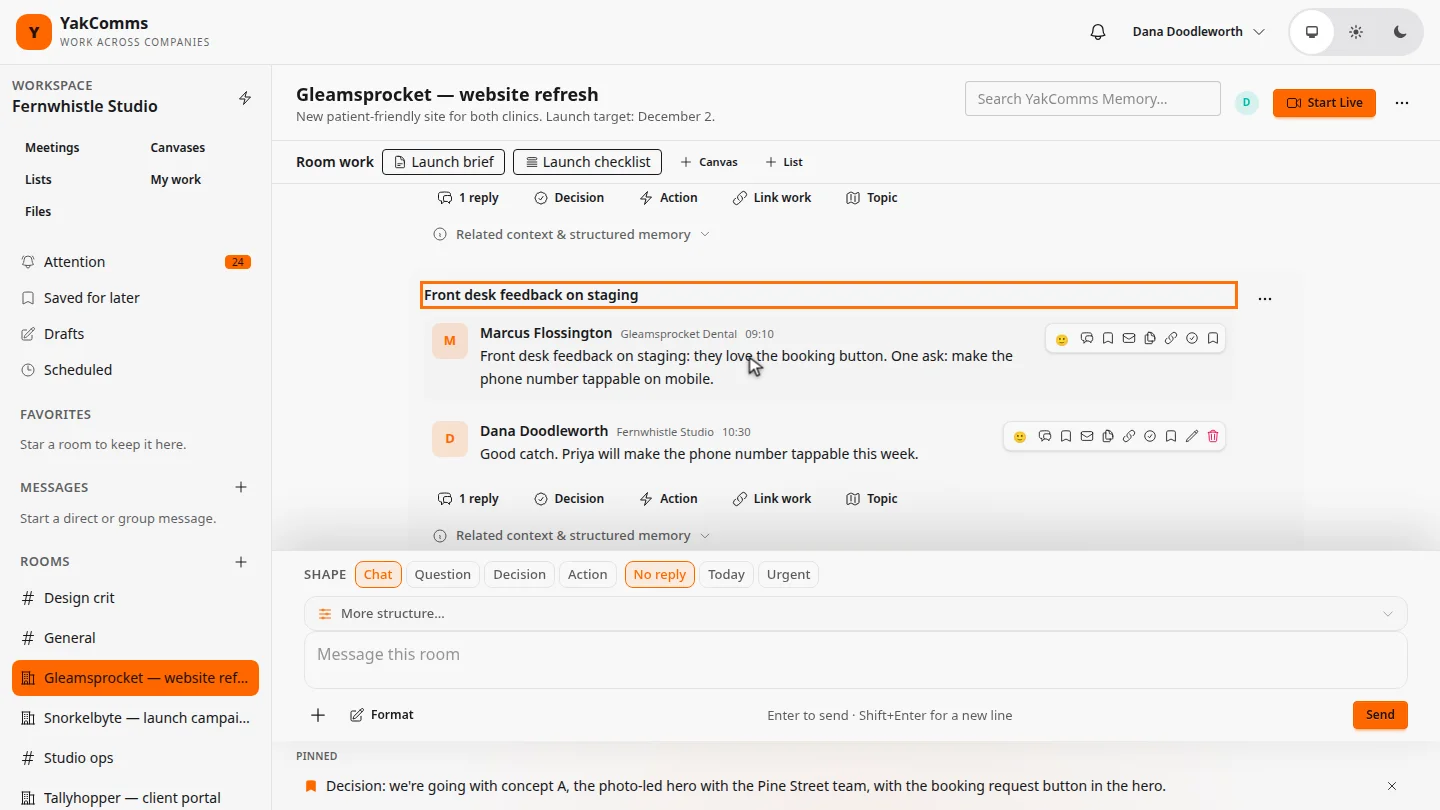
Open the client's room from the sidebar and point at the message you want to act on. A row of quick actions appears beside it.
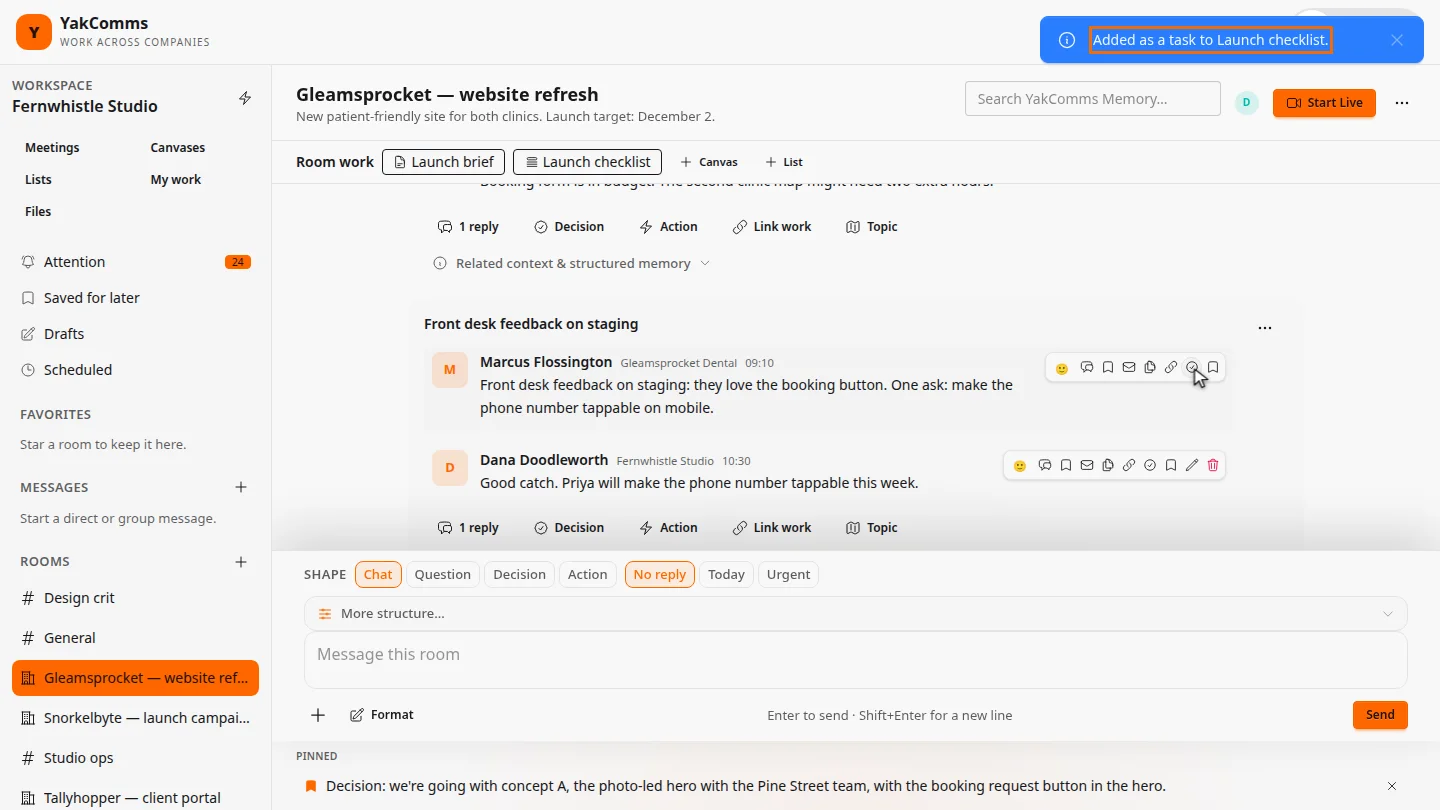
Select Add as task. YakComms confirms it was added to the room's Launch checklist.
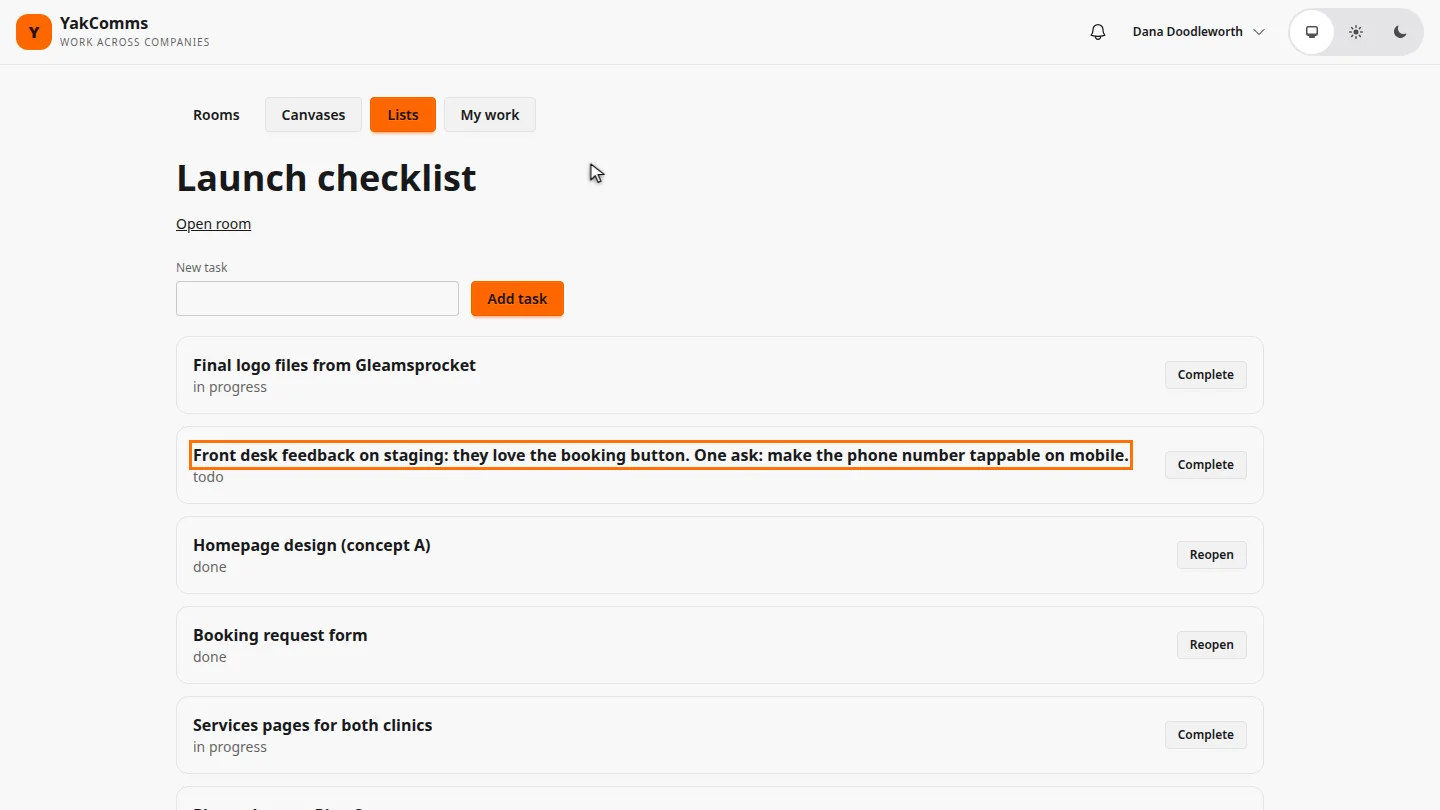
Select Launch checklist at the top of the room. The message is now a task on the list, marked to do, with a Complete button for when it's done.
Steps
Find the message ▶ 0:05
Open the room and hover over the message to show its quick actions.
Add it as a task ▶ 0:15
In the quick actions, select Add as task (the check-circle icon). A confirmation names the list it went to.
Check the list ▶ 0:21
Under Room work, select the list to see the new task.
Lists are visible to the whole room. Messages in internal or private conversations cannot be turned into room tasks.
Next steps
Updated 2026-10-26
message to task action item todo from chat follow up