How to track tasks in a list in YakComms
A launch has dozens of small jobs split between your team and the client. A room's list keeps them in one place with an owner and status, so the next check-in starts from what's left instead of from memory.
Before you start
- A list in a room (select + List in the room, or create one on Lists)
Plays silently with captions; the narrated version is on its way.
Transcript
Keep a launch on track with a shared task list.
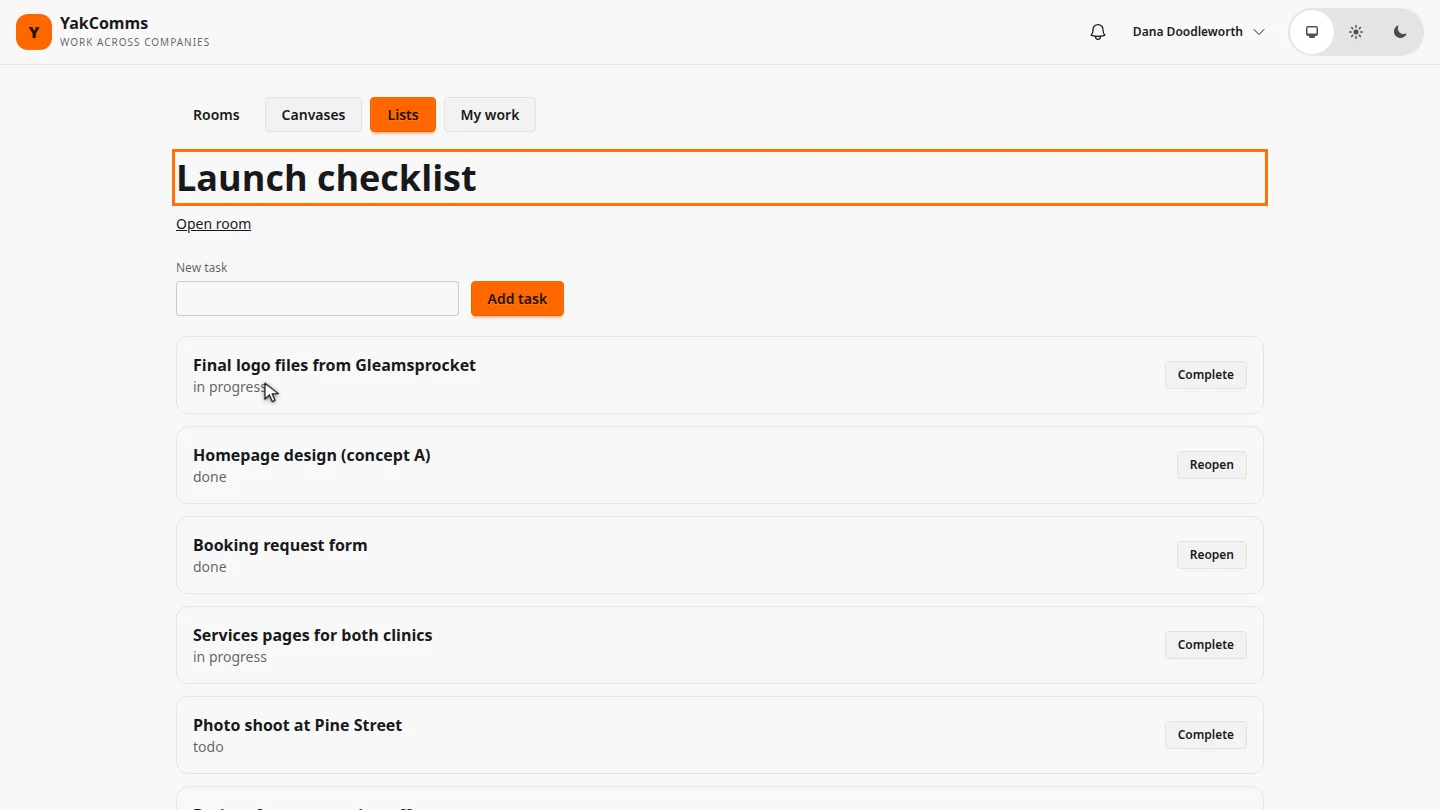
Open Lists. It shows every list in the rooms you can see, from every client. Select Launch checklist to see its tasks and their status.
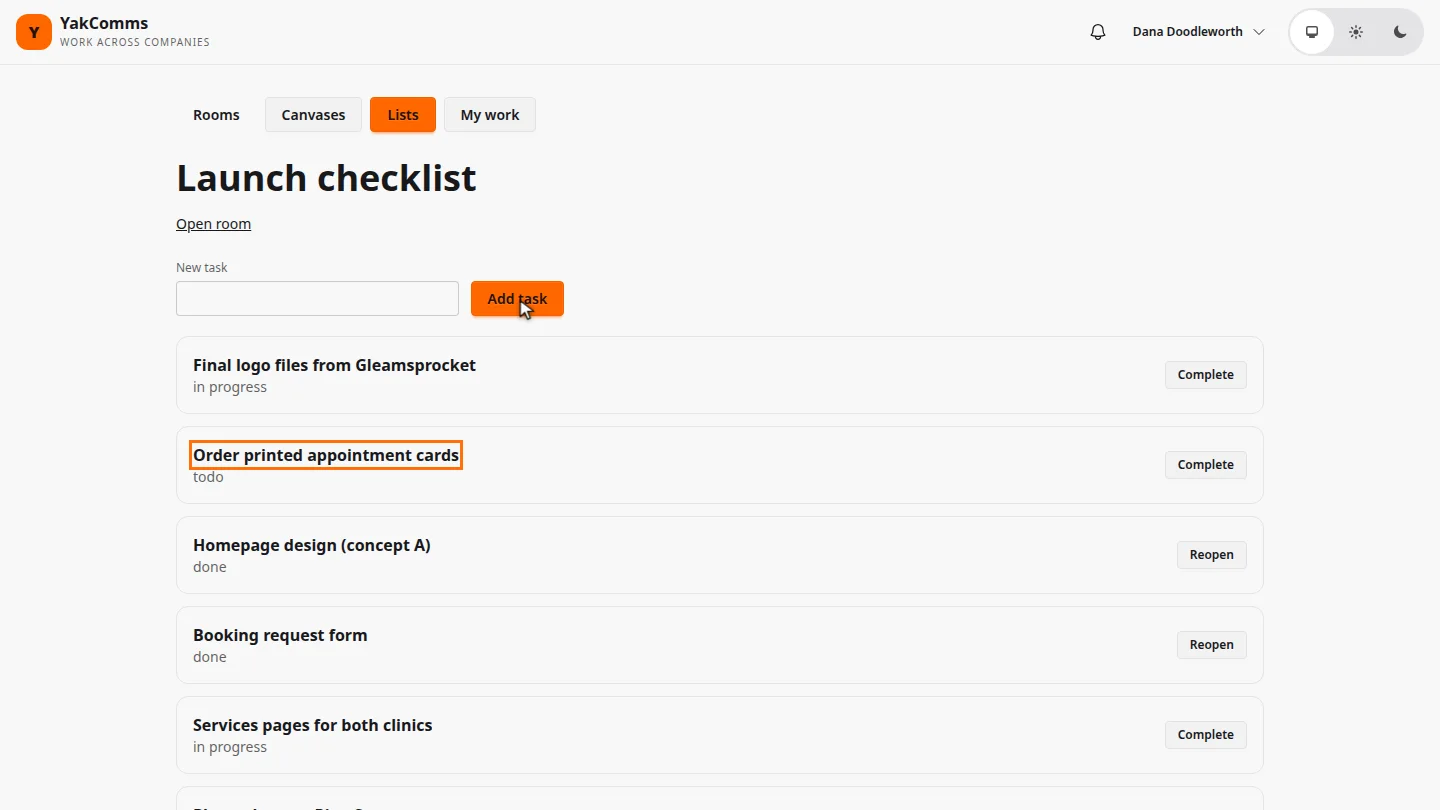
Type a new task in the New task box and select Add task. It joins the list marked to do, and the box clears for the next one.
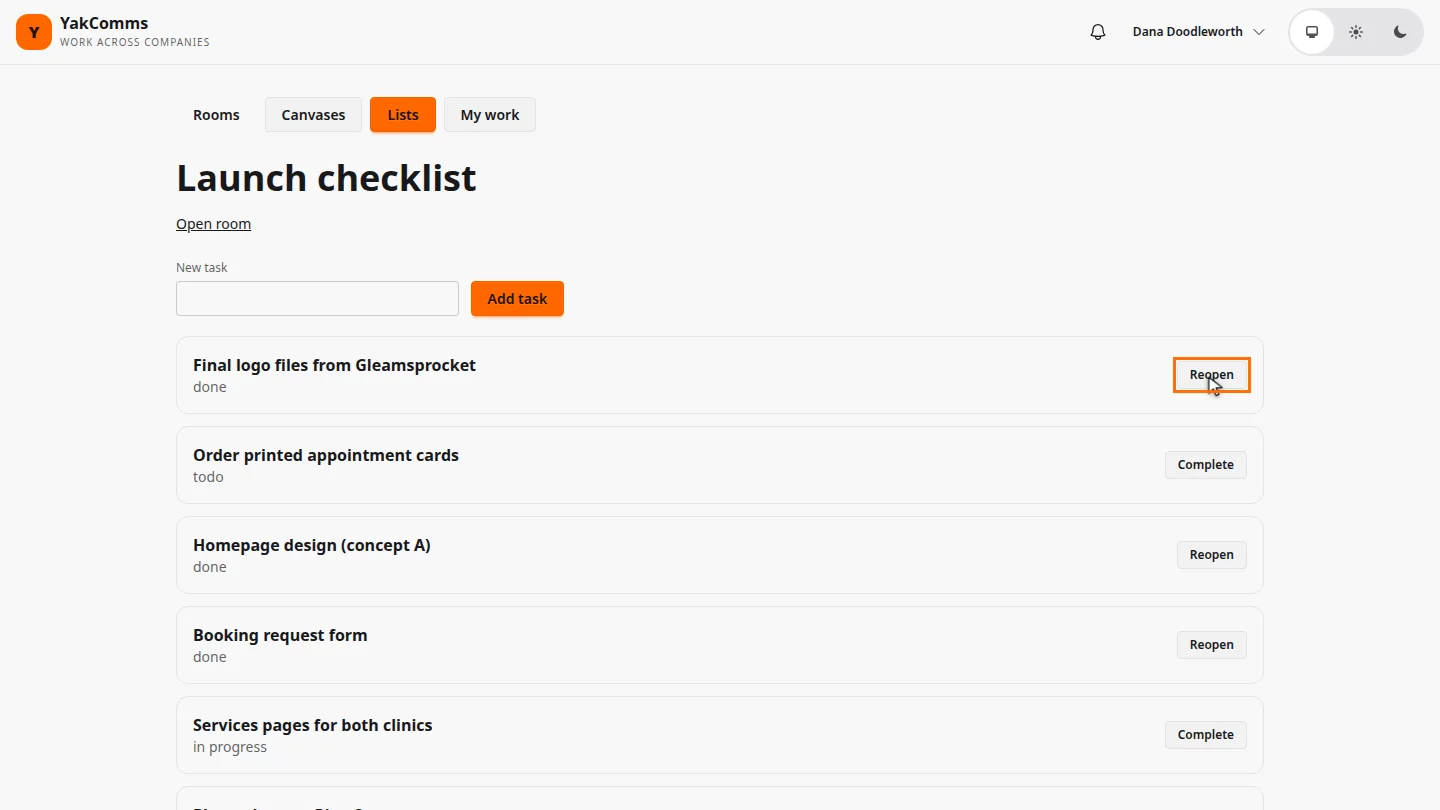
When a task is finished, select Complete on its row. It's marked done, and Reopen brings it back if you need to.
Steps
Open the list ▶ 0:04
Select Lists, then select the list.
Add a task ▶ 0:14
Enter a New task and select Add task.
Complete a task ▶ 0:24
Select Complete on the task's row. It shows done; Reopen undoes it.
Next steps
Updated 2026-10-26
task list checklist project tasks to do list launch checklist