How to search your workspace in YakComms
Weeks into a project, someone asks what was agreed about the booking form. Search looks across the messages, decisions, lists and canvases you have access to, so you can answer with the source instead of from memory.
Plays silently with captions; the narrated version is on its way.
Transcript
Find what was said about a topic, across every room you can see.
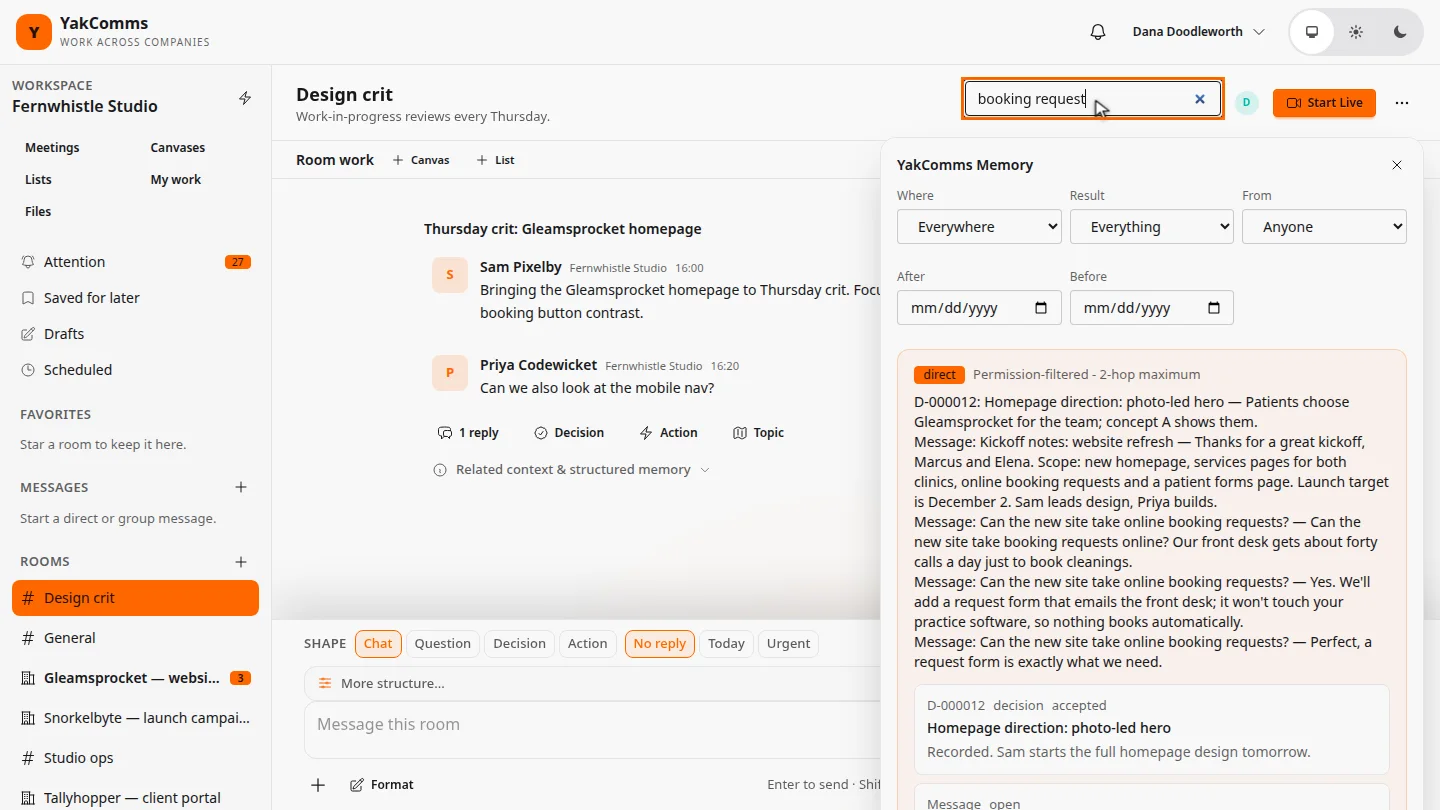
Select the search box at the top of the room, or press Control K, and type what you're looking for.
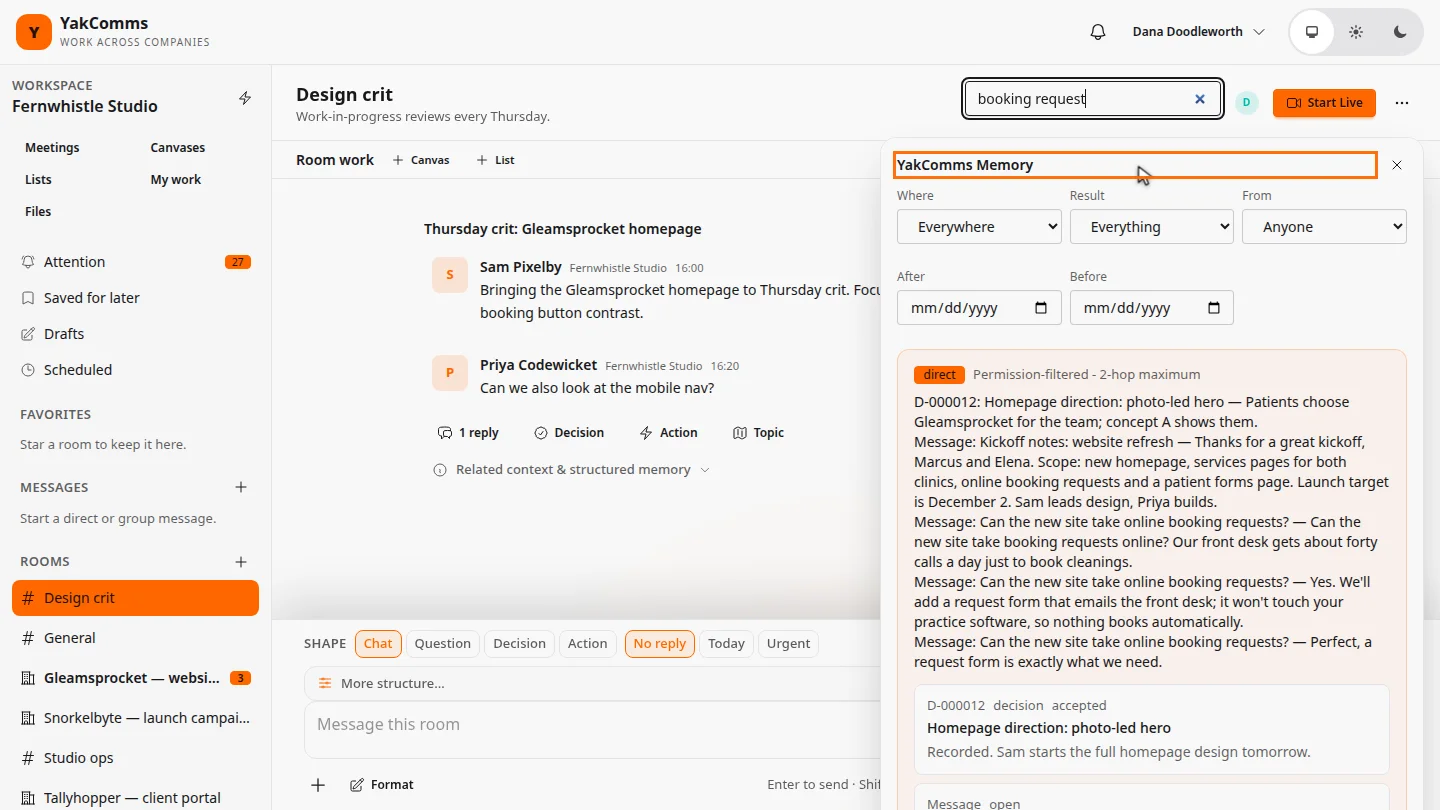
The YakComms Memory panel opens with what matches: decisions, messages and work items from every room you can see, never from rooms you can't.
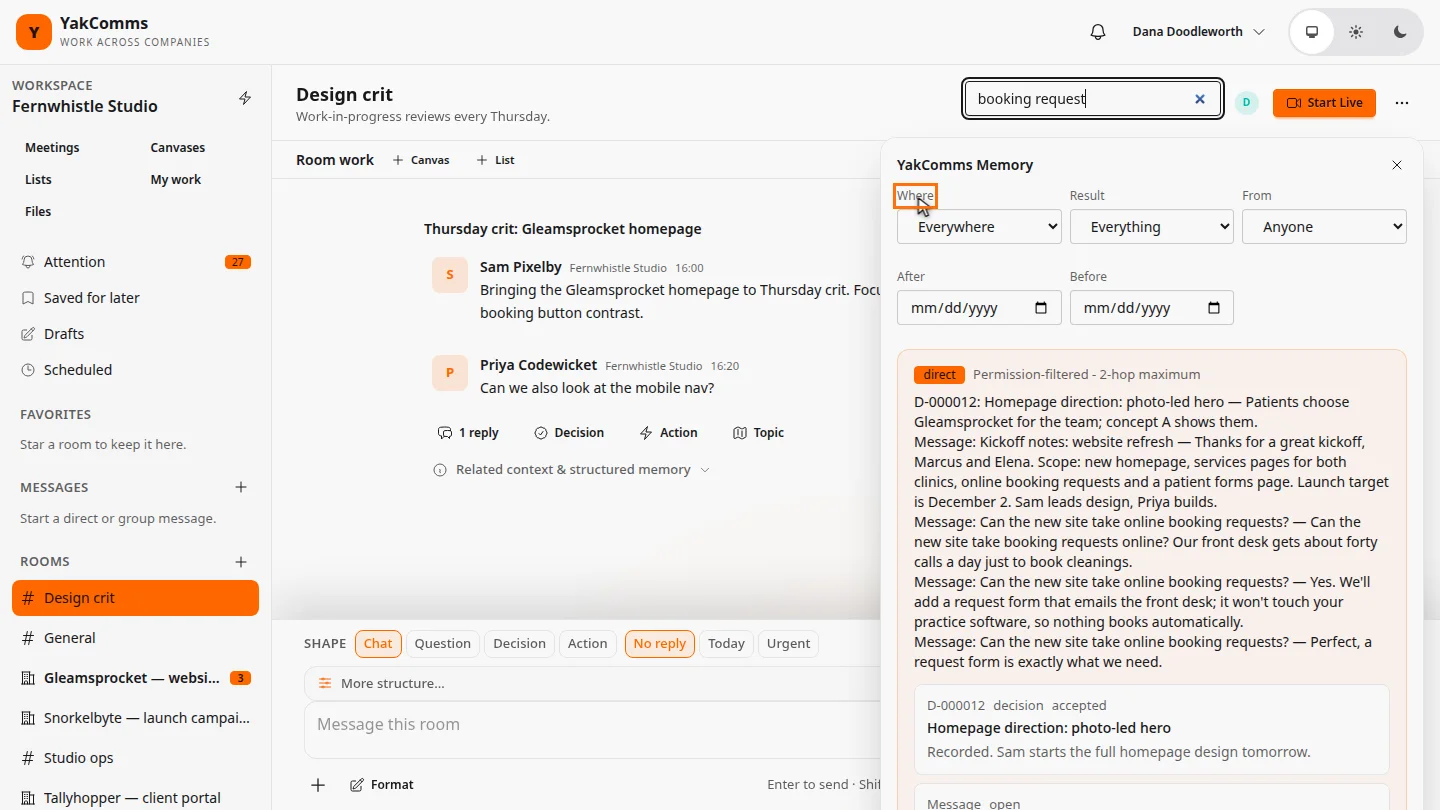
To narrow it down, use the filters at the top: Where, Result, From, and a date range. Then select a result to go to it.
Steps
Search ▶ 0:05
Select Search YakComms Memory… at the top of the room (or press Ctrl+K) and type your search.
Read the results ▶ 0:13
Review the YakComms Memory panel. Results only come from rooms you have access to.
Filter the results ▶ 0:23
Narrow the results with Where, Result, From, After and Before.
Next steps
Updated 2026-10-26
find message search history find decision workspace search